A panel of possibilities
Reach up to 15 controls and shortcuts, including Wi-Fi, Bluetooth, flashlight, dark mode and Do Not Disturb.
ONE ORGANIZED PLACEYOUR EVERYDAY ANDROID COMPANION
Your settings, one swipe closer. Bring quick controls, device status and web search together on your home screen with Settings Home.
Android 9+ · Launcher app · Contains ads
A LOOK INSIDE SETTINGS HOME 01 / 05
01 / THE ESSENTIALS
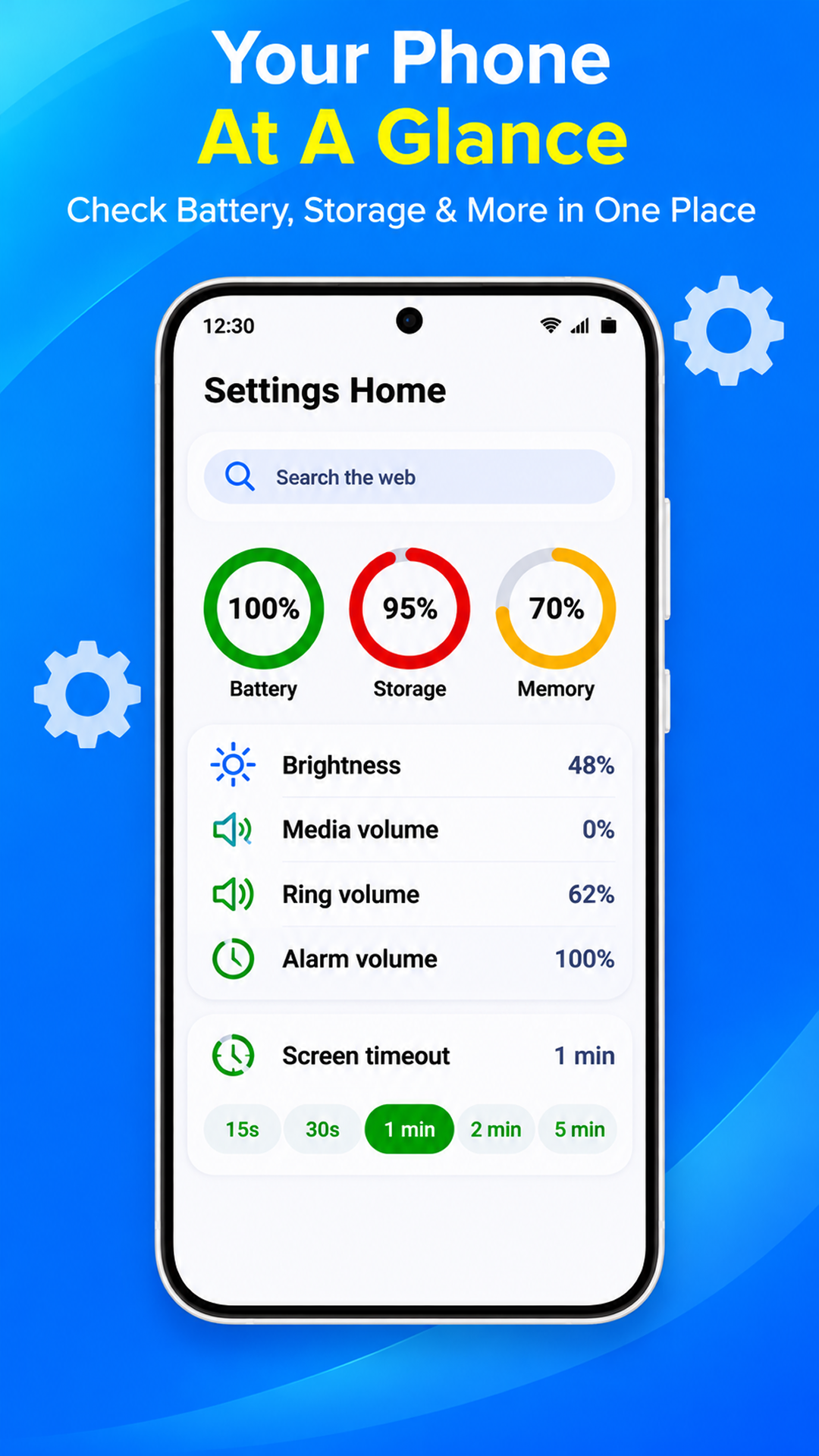
From turning down the volume to finding a setting, keep the useful things close.
Reach up to 15 controls and shortcuts, including Wi-Fi, Bluetooth, flashlight, dark mode and Do Not Disturb.
ONE ORGANIZED PLACEAdjust brightness, choose an available screen timeout and access rotation and adaptive brightness controls.
Adjust available media, ring, notification and alarm volume from your settings panel.
Check battery level and charging status, storage usage and memory usage at a glance.
Browse categories for connections, display, sound, privacy and more. Open supported Android settings pages.
Organize apps and shortcuts, explore wallpaper and layout options, and keep clock and weather information nearby.
Find installed apps in the app drawer. Start a web search from the home-screen search bar and open results in your browser.
Available controls, shortcuts and status information depend on your device, Android version and granted permissions.
 ONE SWIPE TO YOUR PANEL
02 / MAKE IT YOUR HOME
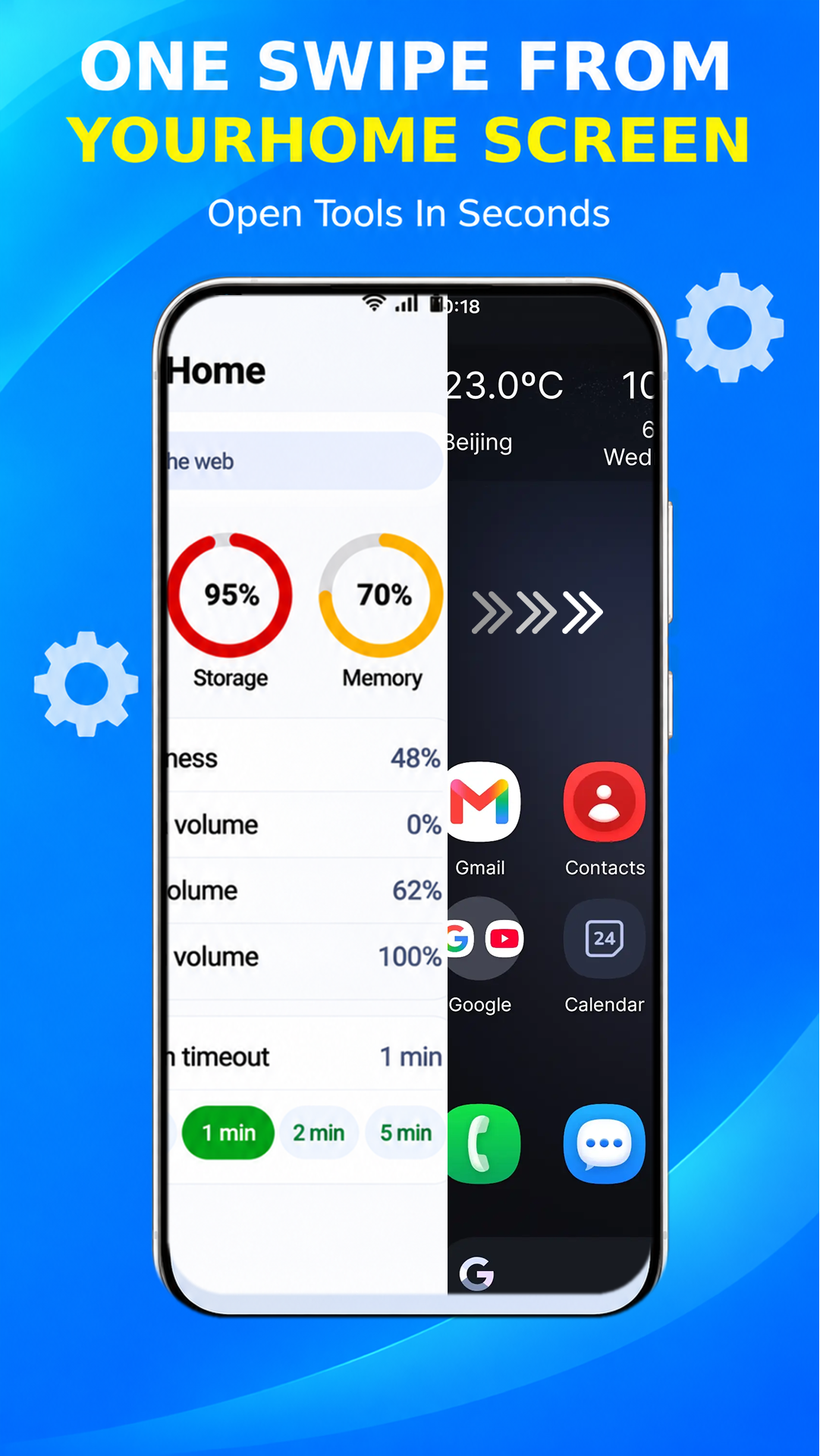
Settings Home is a launcher. Choose it as your default home app to bring an organized settings panel right alongside your home screen.
Download the app from Google Play on your Android device.
Select Settings Home as your default home app during setup to use the launcher experience.
Open the panel to reach common controls and check your device status.
Your home screen is your choice. Using Settings Home as your default launcher is optional. You can switch back to your system launcher or another home app in Android settings at any time.
03 / A CLOSER LOOK
Explore all five screenshots from Google Play.
Select any image to take a closer look.
04 / GOOD TO KNOW
Know how the launcher works before making it your home.
Read the privacy policySome features need permissions or special access. Brightness, screen timeout, rotation and Do Not Disturb controls may need additional authorization. Depending on Android restrictions, a control may open a system settings page instead of changing the setting directly. Features vary by device, Android version and granted permissions.
Choosing Settings Home as your default home app changes your home screen, including its search bar. Web searches use third-party search services and open in your browser. The search provider may vary. You can change your default home app later in Android settings.
An internet connection is needed for web searches and weather updates. Local weather may require location permission.
Settings Home contains ads. Review the developer’s privacy policy for information about data practices before using the app.
LESS SEARCHING. MORE SETTINGS.
Start with a home screen that keeps
your settings within easy reach.